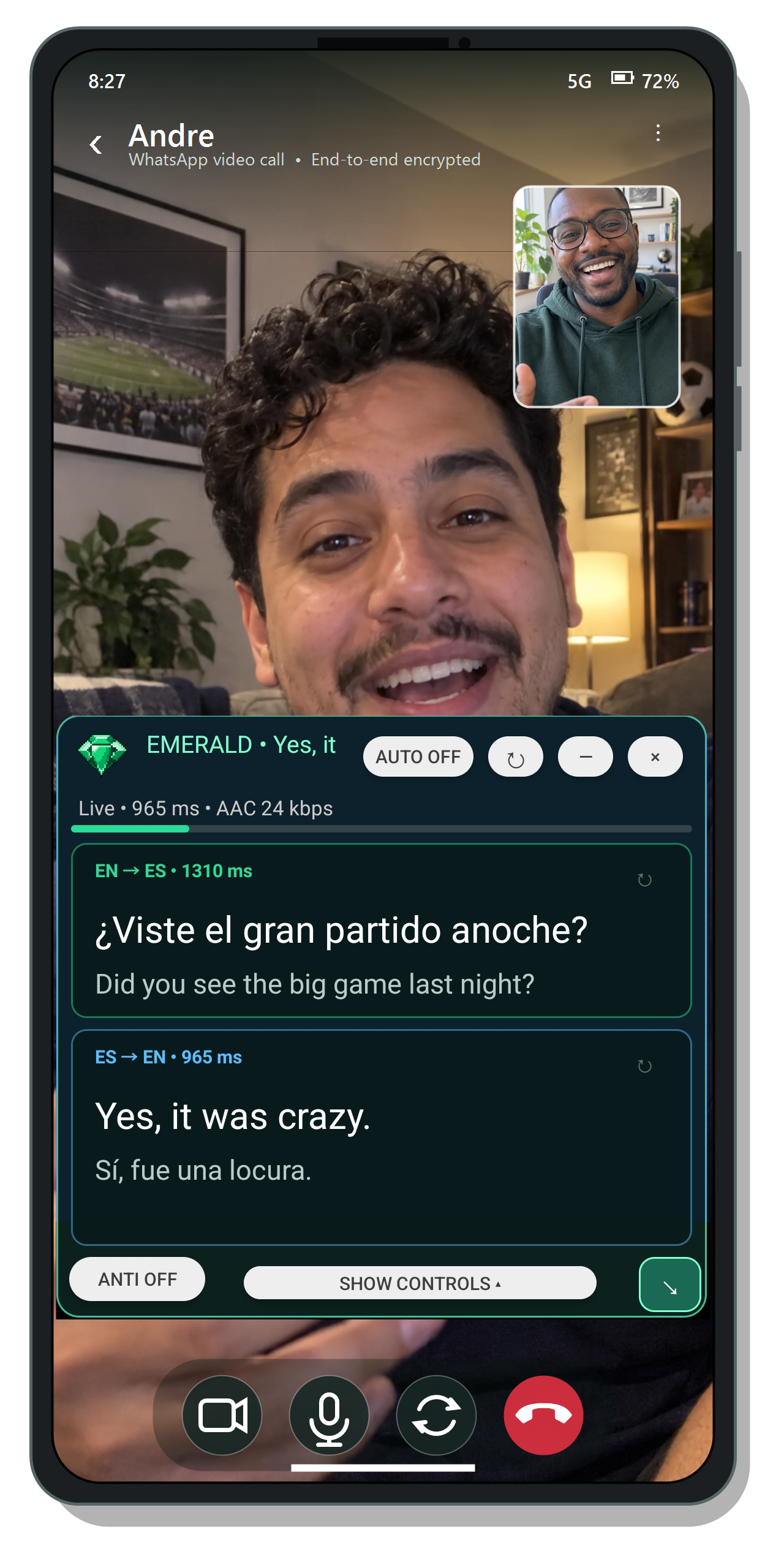
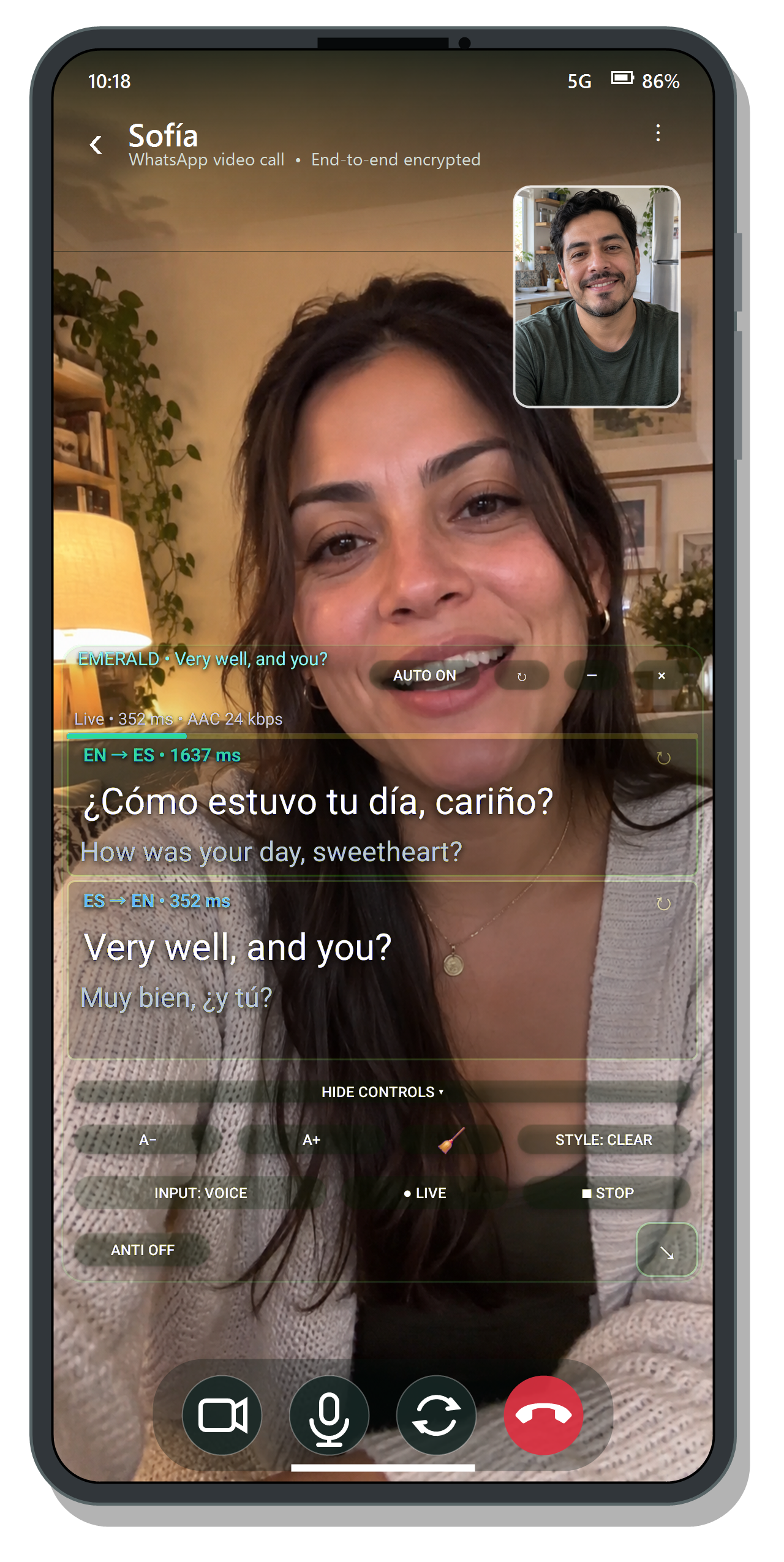
Emerald provides live English ↔ Spanish captions in a floating overlay. The public builds use an Emerald license, keep account information in Settings, and capture microphone audio only while a live session is running.
Start here
Quickstart
Android public app
Install the supplied APK and open Emerald’s guided setup. Choose your language.
Start Accessibility setup from Emerald and try to enable its service. If Android blocks it, allow restricted settings for Emerald, then return and enable the service.
When Emerald’s overlay first appears, tap Close & continue setup to return to the guide.
Allow microphone access and save the license from your invitation. Set up an Accessibility shortcut when the guide asks.
Use the shortcut to reopen Emerald. For remote calls, use speakerphone; then tap LIVE.
Windows public app
Download and open the current Emerald test build.
If SmartScreen appears, verify the file came from NeatThink Labs, then choose More info → Run anyway.
Open Settings and save your Emerald license.
Select an active microphone and confirm the level meter responds.
Press LIVE; press STOP when finished.
Both public apps listen to a selected microphone. During a remote call, the other participant’s audio must reach that microphone; speaker playback usually works better than headphones.
Early-access distribution
Installing Emerald
Android: install the sideloaded APK
Download the Emerald APK from the link supplied with your invitation.
Open the download. If Android blocks it, follow the prompt to allow Install unknown apps for the browser or file manager you used. This permission authorizes that app to open APK installers; it does not root the phone.
Return to the download and choose Install.
Open Emerald’s guided setup and choose your language.
Follow its Accessibility step. In Android Accessibility settings, select Emerald and try to turn on the service.
If Android blocks the service, follow the restricted-settings steps below, then return to Accessibility and enable Emerald.
When Emerald first appears over the screen, tap Close & continue setup to return to the guide.
Finish microphone access and save your invitation license. Configure an Accessibility shortcut, then use it to reopen Emerald.
Emerald needs no root access, bootloader unlock, ADB, device-owner permission, or operating-system modification. It uses Android’s normal app installation, microphone permission, and Accessibility Service controls. Settings names vary by manufacturer; search Android Settings for Accessibility if the menu differs.
Android restricted settings
On Android 13 and newer, Android may initially prevent a sideloaded app from enabling an Accessibility Service. First try to turn Emerald on under Accessibility. If Android says the setting is restricted or the switch is unavailable, open Settings → Apps → Emerald, open the three-dot menu, choose Allow restricted settings, and confirm with your device PIN or biometric authentication. Then return to Settings → Accessibility and enable Emerald. On some devices the restricted-settings option may not appear until you have tried the Accessibility step. This is an Android protection for sideloaded apps; it does not indicate that Emerald needs root access.
Windows: unsigned early-access builds
Current Windows test builds are not digitally code-signed. Windows SmartScreen may therefore say that Microsoft Defender SmartScreen prevented an unrecognized app from starting, even when the file is unchanged and functioning normally. This warning reflects the missing publisher reputation/signature; it is not by itself a finding that Emerald contains malware.
Confirm the download came from a NeatThink Labs link. Do not bypass a warning for a copy obtained elsewhere.
Open the downloaded Emerald executable or installer.
If SmartScreen appears, select More info, confirm the app name is Emerald, and select Run anyway.
If your organization manages the computer and removes that option, ask its administrator. Do not disable SmartScreen globally.
Your browser or antivirus may show a separate download warning because the build is new and unsigned. Keep those protections enabled; approve only the specific Emerald file you intentionally obtained. Future production releases are expected to use normal code signing.
Android setup guide
Every permission, explained.
For a guided first installation, see the dedicated Android page covering browser APK installation, restricted settings, Accessibility, microphone access, updates, and safety controls.
Emerald’s direct-download builds have their own update workflow. Both apps automatically check Emerald’s release feed when they open, and both also provide Check for update in Settings. They do not use Google Play or Microsoft Store updates. Optional releases can be installed when convenient. A required release pauses new live translation sessions until the update is installed, while Settings remains available so the update can be completed.
Android updates
Emerald automatically checks at startup, or you can check from Settings.
When a release is available, choose Download. Emerald downloads the complete APK and verifies its checksum, package identity, version, and signing certificate.
Android displays the final system install confirmation. Android does not permit Emerald to silently approve this step; tap Install to continue.
If prompted, allow Emerald to install unknown apps. Android may require this once for the updater.
The update installs over the existing copy, preserving app data. Do not uninstall first unless support specifically asks you to; uninstalling can remove local settings.
Windows updates
Emerald automatically checks at startup, or you can check from Settings.
It downloads an available complete release in the background and verifies the published SHA-256 checksum and required application files.
For an optional release, choose Restart & Install. A required release installs after verification so Emerald can reopen on the supported version.
If Windows asks for permission, approve only after confirming Emerald initiated the update.
The updater closes Emerald, replaces the application files, and reopens the new version. If anything fails, it preserves or restores the previous version rather than leaving a partial installation.
Because Windows builds remain unsigned during early access, SmartScreen may also appear for a newly downloaded updater or release. Follow the same source-verification guidance above. Emerald never asks you to turn off SmartScreen or antivirus protection.
Core experience
What happens during LIVE
01
Connect
Emerald validates the license, starts microphone capture, and opens a protected live recognition session.
02
Caption
Provisional text updates while someone speaks. Completed English or Spanish speech becomes a paired original and translation.
03
Recover
If the connection drops, Emerald reconnects and uses its short audio buffer when possible. A four-hour session refresh reconnects automatically.
Emerald watches for missing translations, same-language output, implausible direction changes, and other suspicious results. Depending on the result and your settings, it can repair the translation or run a focused recognition retry without interrupting the main live stream.
Android
An accessibility-layer overlay
Emerald’s Accessibility Service exists to keep the user-controlled translation overlay visible above calls and other apps. It is a standard Android capability that you enable and can disable at any time; Emerald does not require root or privileged system access.
Cards: readable scrolling conversation history.
Subs: compact, temporary subtitle lines.
Clear: slim, highly transparent video-call cards designed to cover less of the people on screen.
Low-spec mode: reduces animation and limits retained on-screen work on slower devices.
Real Emerald Android overlays composited over representative WhatsApp video calls.
Accessibility controls
You remain in control of the service. Turning Emerald off under Android Settings → Accessibility removes its overlay capability until you enable it again. Emerald does not read screen content, contacts, messages, or call history through the service.
Diagnostics
If encrypted audio diagnostics are enabled for a test session, Android stores the recording and capture metadata in app-specific storage. Sharing is deliberate, and local diagnostic files can be deleted from Settings.
Windows
A desktop overlay that stays close
⠿EMERALD • LIVELIVE TRANSLATION↟ AUTO ON↻⌃ COLLAPSE⚙ SETTINGS×
● LIVE • English ⇄ Spanish
EN → ES140 ms✦ EXPLAIN PHRASE
Un zorro marrón rápido saltó por encima del perro perezoso.
Quick brown fox jumped over the lazy dog.
◖))
ES → EN80 ms✦ EXPLAIN PHRASE
The lazy dog?
El perro perezoso?
◖))
EN → ES100 ms✦ EXPLAIN PHRASE
Sí. Muy perezoso.
Sí. Very lazy.
◖))
▴ SHOW CONTROLS
Emerald Windows interface, recreated from an actual build.
Windows uses a selected microphone, a responsive topmost caption window, and a separate Settings page for account and behavior controls.
Move, resize, collapse, or hide Emerald to the tray.
Use the level meter to verify the selected microphone.
Right-click finished captions for copy and related actions.
Use the small refresh control to clear recognition-session bias without stopping capture.
Managed updates are checked through Settings. Required updates pause live translation until the new build is installed, while license and account access remain available. During early access, a fresh unsigned release may trigger SmartScreen again even if an earlier Emerald version was approved.
Caption tools
Read, retry, and understand
ToolWhat it doesAvailability
Anti-repeatSuppresses a recently translated phrase when it is immediately spoken back in the other language.Windows, Android
Manual RetryRequests a fresh translation or focused recognition retry for the selected completed caption.Windows, Android
Report recognitionLets a tester submit what was heard and what was expected, contributing a reviewable context suggestion tied to that license.Windows, Android
Explain phraseReturns a concise bilingual explanation for idioms, slang, cultural references, or other non-literal language in a selected caption.Windows
Refresh recognitionResets the live recognition session to clear accumulated language bias while capture continues.Windows, Android
Copy / external translatorCopies a caption or opens it in an external translator from the existing caption menu.Windows, Android
Shared recognition suggestions are moderated and revocable. They can improve future context, but they do not guarantee that a name or phrase will always be recognized.
License and usage
Know what the test costs
Usage in Settings
Emerald shows the licensed user and email, all-time usage, weekly usage, additional processing costs, outstanding balance, and balance limit.
No Emerald markup
During early testing, testers reimburse the exact metered third-party processing costs incurred for their use. Emerald itself adds no subscription or markup.
The balance changes color at 75% and 90% of the account limit. At the limit, live translation is suspended—but the license remains active so Settings can explain the pause and open secure checkout. Successful payment resets the amount due and restores translation automatically. Checkout becomes available when the balance reaches the minimum shown in the app.
Privacy & consent
What Emerald handles
During LIVE, microphone audio is sent to the speech service needed to produce captions. Emerald’s account server handles licensing, temporary service access, usage accounting, updates, and features you explicitly request; it does not retain the live microphone stream.
Account records may include a license identifier, assigned user ID, email, installation identifier, usage and cost records, payment state, and recognition corrections deliberately submitted by a tester. See the Early Tester Terms & Privacy for the full notice.
Help
Troubleshooting
Android says this source cannot install apps
Open the prompt’s Settings link and allow Install unknown apps for the browser, file manager, or Emerald updater that opened the APK. Return and retry the installation. You do not need root access.
Android overlay does not appear
Open Android Accessibility settings and re-enable Emerald, especially after reinstalling. Confirm an Accessibility button or gesture is assigned, then use that shortcut again.
Windows says it protected my PC
Current test builds are unsigned. If—and only if—the file came from NeatThink Labs, choose More info → Run anyway. Do not turn SmartScreen off globally. If the option is unavailable on a managed computer, contact its administrator.
An update will not install
Keep Emerald connected, retry from Settings, and approve the operating system’s install prompt. On Android, verify the updater can install unknown apps. On Windows, confirm no security prompt is waiting behind another window. The existing version remains available after a failed update.
A remote caller is not being heard
Emerald hears the selected microphone, not private headphone playback. Use speakerphone or another consented audio arrangement that lets the microphone hear both speakers.
A familiar phrase keeps being misrecognized
Tap the recognition refresh control, then try once more. If the problem repeats, use Report recognition on the finished caption and provide the exact expected wording.
The app says translation is paused
Open Settings and refresh usage. If the balance reached its limit, use Settle Up. If a required update is shown, install it before starting another live session.
Captions are slow after a retry
The main live stream should continue while a focused retry runs separately. If Checking recognition remains too long, refresh the recognition session and send the recent rolling log with a problem report.
Ready for a conversation?
Start with the quickstart for your platform, keep the overlay within easy sight, and press STOP when you are done.